81 KiB
- User's guide
- Getting started
- Interface of the annotation tool
- Shape mode (advanced)
- Track mode (advanced)
- Attribute annotation mode (advanced)
- AI Tools
- OpenCV Tools
- Annotation with rectangle by 4 points
- Annotation with polygons
- Annotation with polylines
- Annotation with points
- Annotation with cuboids
- Annotation with tags
- Track mode with polygons
- Review
- Automatic annotation
- Shape grouping
- Filter
- Analytics
- Shortcuts
User's guide
Computer Vision Annotation Tool (CVAT) is a web-based tool which helps to annotate videos and images for Computer Vision algorithms. It was inspired by Vatic free, online, interactive video annotation tool. CVAT has many powerful features: interpolation of bounding boxes between key frames, automatic annotation using deep learning models, shortcuts for most of critical actions, dashboard with a list of annotation tasks, LDAP and basic authorization, etc... It was created for and used by a professional data annotation team. UX and UI were optimized especially for computer vision tasks developed by our team.
Getting started
Authorization
-
First of all, you have to log in to CVAT tool.

-
For register a new user press "Create an account"

-
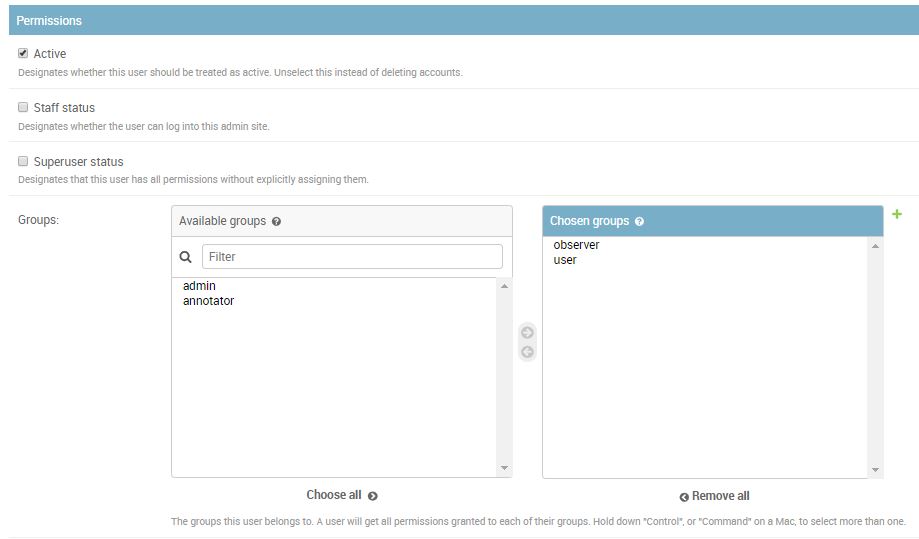
You can register a user but by default it will not have rights even to view list of tasks. Thus you should create a superuser. The superuser can use Django administration panel to assign correct groups to the user. Please use the command below to create an admin account:
docker exec -it cvat bash -ic 'python3 ~/manage.py createsuperuser' -
If you want to create a non-admin account, you can do that using the link below on the login page. Don't forget to modify permissions for the new user in the administration panel. There are several groups (aka roles): admin, user, annotator, observer.

Administration panel
Go to the Django administration panel. There you can:
-
Create / edit / delete users
-
Control permissions of users and access to the tool.
Creating an annotation task
-
Create an annotation task pressing
Create new taskbutton on the tasks page or on the project page.
-
Specify parameters of the task:
Basic configuration
Name The name of the task to be created.

Projects The project that this task will be related with.

Labels. There are two ways of working with labels (available only if the task is not related to the project):
-
The
Constructoris a simple way to add and adjust labels. To add a new label click theAdd labelbutton.
You can set a name of the label in the
Label namefield and choose a color for each label.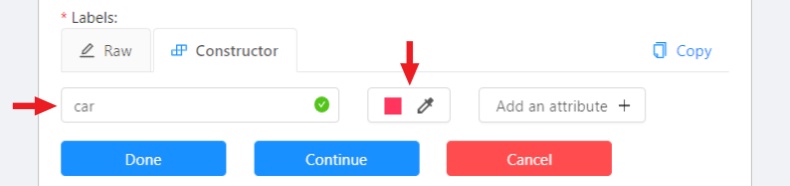
If necessary you can add an attribute and set its properties by clicking
Add an attribute: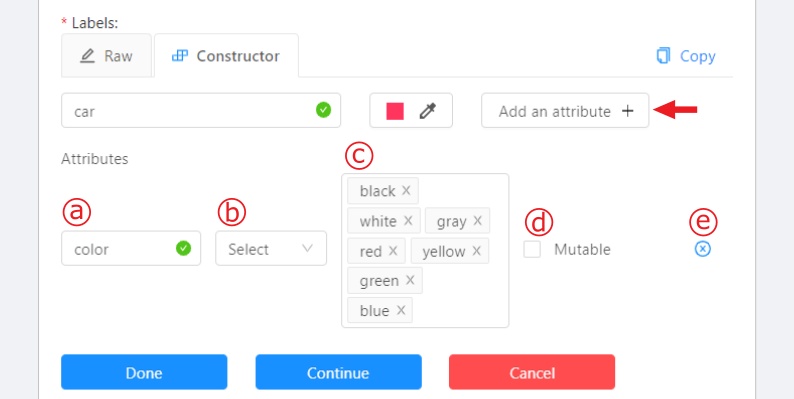
The following actions are available here:
- Set the attribute’s name.
- Choose the way to display the attribute:
- Select — drop down list of value
- Radio — is used when it is necessary to choose just one option out of few suggested.
- Checkbox — is used when it is necessary to choose any number of options out of suggested.
- Text — is used when an attribute is entered as a text.
- Number — is used when an attribute is entered as a number.
- Set values for the attribute. The values could be separated by pressing
Enter. The entered value is displayed as a separate element which could be deleted by pressingBackspaceor clicking the close button (x). If the specified way of displaying the attribute is Text or Number, the entered value will be displayed as text by default (e.g. you can specify the text format). - Checkbox
Mutabledetermines if an attribute would be changed frame to frame. - You can delete the attribute by clicking the close button (x).
Click the
Continuebutton to add more labels. If you need to cancel adding a label - press theCancelbutton. After all the necessary labels are added click theDonebutton. After clickingDonethe added labels would be displayed as separate elements of different colour. You can edit or delete labels by clickingUpdate attributesorDelete label. -
The
Rawis a way of working with labels for an advanced user. Raw presents label data in json format with an option of editing and copying labels as a text. TheDonebutton applies the changes and theResetbutton cancels the changes.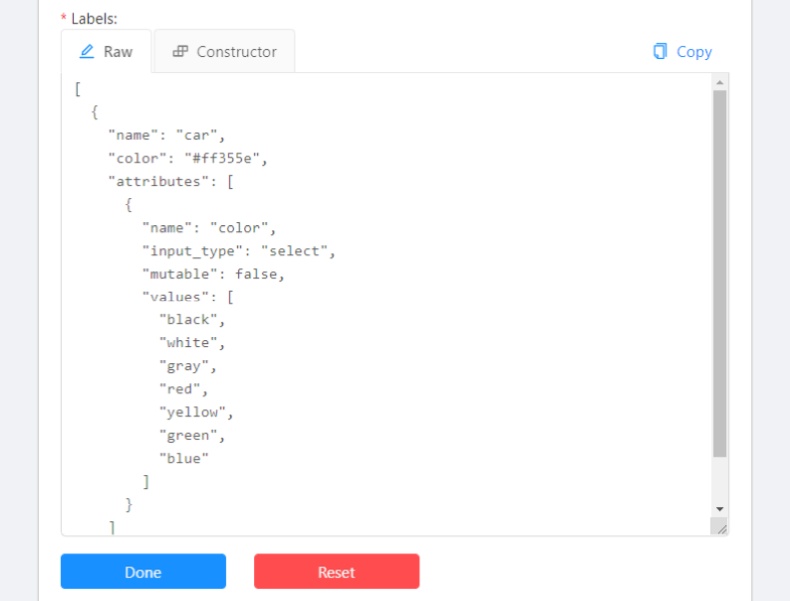
In
RawandConstructormode, you can press theCopybutton to copy the list of labels.Select files. Press tab
My computerto choose some files for annotation from your PC. If you select tabConnected file shareyou can choose files for annotation from your network. If you selectRemote source, you'll see a field where you can enter a list of URLs (one URL per line). If you upload a video or dataset with images and selectUse cacheoption, you can attach amanifest.jsonlfile. You can find how to prepare it here.
Advanced configuration

Use zip chunks. Force to use zip chunks as compressed data. Actual for videos only.
Use cache. Defines how to work with data. Select the checkbox to switch to the "on-the-fly data processing", which will reduce the task creation time (by preparing chunks when requests are received) and store data in a cache of limited size with a policy of evicting less popular items. See more here.
Image Quality. Use this option to specify quality of uploaded images. The option helps to load high resolution datasets faster. Use the value from
5(almost completely compressed images) to100(not compressed images).Overlap Size. Use this option to make overlapped segments. The option makes tracks continuous from one segment into another. Use it for interpolation mode. There are several options for using the parameter:
- For an interpolation task (video sequence). If you annotate a bounding box on two adjacent segments they will be merged into one bounding box. If overlap equals to zero or annotation is poor on adjacent segments inside a dumped annotation file, you will have several tracks, one for each segment, which corresponds to the object.
- For an annotation task (independent images). If an object exists on overlapped segments, the overlap is greater than zero and the annotation is good enough on adjacent segments, it will be automatically merged into one object. If overlap equals to zero or annotation is poor on adjacent segments inside a dumped annotation file, you will have several bounding boxes for the same object. Thus, you annotate an object on the first segment. You annotate the same object on second segment, and if you do it right, you will have one track inside the annotations. If annotations on different segments (on overlapped frames) are very different, you will have two shapes for the same object. This functionality works only for bounding boxes. Polygons, polylines, points don't support automatic merge on overlapped segments even the overlap parameter isn't zero and match between corresponding shapes on adjacent segments is perfect.
Segment size. Use this option to divide a huge dataset into a few smaller segments. For example, one job cannot be annotated by several labelers (it isn't supported). Thus using "segment size" you can create several jobs for the same annotation task. It will help you to parallel data annotation process.
Start frame. Frame from which video in task begins.
Stop frame. Frame on which video in task ends.
Frame Step. Use this option to filter video frames. For example, enter
25to leave every twenty fifth frame in the video or every twenty fifth image.Chunk size. Defines a number of frames to be packed in a chunk when send from client to server. Server defines automatically if empty.
Recommended values:
- 1080p or less: 36
- 2k or less: 8 - 16
- 4k or less: 4 - 8
- More: 1 - 4
Dataset Repository. URL link of the repository optionally specifies the path to the repository for storage (
default: annotation / <dump_file_name> .zip). The .zip and .xml file extension of annotation are supported. Field format:URL [PATH]example:https://github.com/project/repos.git [1/2/3/4/annotation.xml]Supported URL formats :
https://github.com/project/repos[.git]github.com/project/repos[.git]git@github.com:project/repos[.git]
The task will be highlighted in red after creation if annotation isn't synchronized with the repository.
Use LFS. If the annotation file is large, you can create a repository with LFS support.
Issue tracker. Specify full issue tracker's URL if it's necessary.
Push
Submitbutton and it will be added into the list of annotation tasks. Then, the created task will be displayed on a tasks page:
-
-
The tasks page contains elements and each of them relates to a separate task. They are sorted in creation order. Each element contains: task name, preview, progress bar, button
Open, and menuActions. Each button is responsible for a in menuActionsspecific function:Dump AnnotationandExport as a dataset— download annotations or annotations and images in a specific format. The following formats are available:- CVAT for video is highlighted if a task has the interpolation mode.
- CVAT for images is highlighted if a task has the annotation mode.
- PASCAL VOC
- (VOC) Segmentation mask — archive contains class and instance masks for each frame in the png format and a text file with the value of each color.
- YOLO
- COCO
- TFRecord
- MOT
- LabelMe 3.0
- Datumaro
Upload annotationis available in the same formats as inDump annotation.- CVAT accepts both video and image sub-formats.
Automatic Annotation— automatic annotation with OpenVINO toolkit. Presence depends on how you build CVAT instance.Delete— delete task.
Push
Openbutton to go to task details. -
Task details is a task page which contains a preview, a progress bar and the details of the task (specified when the task was created) and the jobs section.

- The next actions are available on this page:
- Change the task’s title.
- Open
Actionsmenu. - Change issue tracker or open issue tracker if it is specified.
- Change labels (available only if the task is not related to the project).
You can add new labels or add attributes for the existing labels in the Raw mode or the Constructor mode.
By clicking
Copyyou will copy the labels to the clipboard. - Assigned to — is used to assign a task to a person. Start typing an assignee’s name and/or choose the right person out of the dropdown list.
Jobs— is a list of all jobs for a particular task. Here you can find the next data:- Jobs name with a hyperlink to it.
- Frames — the frame interval.
- A status of the job. The status is specified by the user in the menu inside the job. There are three types of status: annotation, validation or completed. The status of the job is changes the progress bar of the task.
- Started on — start date of this job.
- Duration — is the amount of time the job is being worked.
- Assignee is the user who is working on the job. You can start typing an assignee’s name and/or choose the right person out of the dropdown list.
- Reviewer – a user assigned to carry out the review, read more in the review section.
Copy. By clicking Copy you will copy the job list to the clipboard. The job list contains direct links to jobs.
- The next actions are available on this page:
-
Follow a link inside
Jobssection to start annotation process. In some cases, you can have several links. It depends on size of your task andOverlap SizeandSegment Sizeparameters. To improve UX, only the first chunk of several frames will be loaded and you will be able to annotate first images. Other frames will be loaded in background.
Projects
At CVAT, you can create a project containing tasks of the same type. All tasks related to the project will inherit a list of labels.
To create a project, go to the projects section by clicking on the Projects item in the top menu.
On the projects page, you can see a list of projects, use a search, or create a new project by clicking Create New Project.

You can change: the name of the project, the list of labels (which will be used for tasks created as parts of this project) and a link to the issue.

Once created, the project will appear on the projects page. To open a project, just click on it.

Here you can do the following:
- Change the project's title.
- Open the
Actionsmenu. - Change issue tracker or open issue tracker if it is specified.
- Change labels.
You can add new labels or add attributes for the existing labels in the Raw mode or the Constructor mode.
You can also change the color for different labels. By clicking
Copyyou can copy the labels to the clipboard. - Assigned to — is used to assign a project to a person. Start typing an assignee's name and/or choose the right person out of the dropdown list.
Tasks— is a list of all tasks for a particular project.
You can remove the project and all related tasks through the Action menu.
Models
The Models page contains a list of deep learning (DL) models deployed for semi-automatic and automatic annotation. To open the Models page, click the Models button on the navigation bar. The list of models is presented in the form of a table. The parameters indicated for each model are the following:
Frameworkthe model is based on- model
Name - model
Type:detector- used for automatic annotation (available in detectors and automatic annotation)interactor- used for semi-automatic shape annotation (available in interactors)tracker- used for semi-automatic track annotation (available in trackers)reid- used to combine individual objects into a track (available in automatic annotation)
Description- brief description of the modelLabels- list of the supported labels (only for the models of thedetectorstype)

Read how to install your model here.
Search
There are several options how to use the search.
- Search within all fields (owner, assignee, task name, task status, task mode). To execute enter a search string in search field.
- Search for specific fields. How to perform:
owner: admin- all tasks created by the user who has the substring "admin" in his nameassignee: employee- all tasks which are assigned to a user who has the substring "employee" in his namename: mighty- all tasks with the substring "mighty" in their namesmode: annotationormode: interpolation- all tasks with images or videos.status: annotationorstatus: validationorstatus: completed- search by statusid: 5- task with id = 5.
- Multiple filters. Filters can be combined (except for the identifier) using the keyword
AND:mode: interpolation AND owner: adminmode: annotation and status: annotation
The search is case insensitive.

Interface of the annotation tool
The tool consists of:
Header- pinned header used to navigate CVAT sections and account settings;Top panel— contains navigation buttons, main functions and menu access;Workspace— space where images are shown;Controls sidebar— contains tools for navigating the image, zoom, creating shapes and editing tracks (merge, split, group)Objects sidebar— contains label filter, two lists: objects (on the frame) and labels (of objects on the frame) and appearance settings.

Basic navigation
-
Use arrows below to move to the next/previous frame. Use the scroll bar slider to scroll through frames. Almost every button has a shortcut. To get a hint about a shortcut, just move your mouse pointer over an UI element.

-
To navigate the image, use the button on the controls sidebar. Another way an image can be moved/shifted is by holding the left mouse button inside an area without annotated objects. If the
Mouse Wheelis pressed, then all annotated objects are ignored. Otherwise the a highlighted bounding box will be moved instead of the image itself.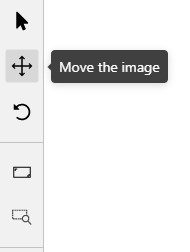
-
You can use the button on the sidebar controls to zoom on a region of interest. Use the button
Fit the imageto fit the image in the workspace. You can also use the mouse wheel to scale the image (the image will be zoomed relatively to your current cursor position).
Types of shapes (basics)
There are five shapes which you can annotate your images with:
RectangleorBounding boxPolygonPolylinePointsCuboidTag
And there is how they all look like:


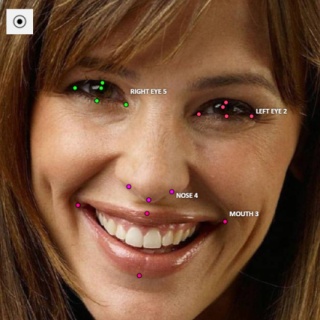


Tag - has no shape in the workspace, but is displayed in objects sidebar.
Shape mode (basics)
Usage examples:
- Create new annotations for a set of images.
- Add/modify/delete objects for existing annotations.
-
You need to select
Rectangleon the controls sidebar:
Before you start, select the correct
Label(should be specified by you when creating the task) andDrawing Method(by 2 points or by 4 points):
-
Creating a new annotation in
Shape mode:-
Create a separate
Rectangleby clicking onShape.
-
Choose the opposite points. Your first rectangle is ready!

-
To learn about creating a rectangle using the by 4 point drawing method, (read here).
-
It is possible to adjust boundaries and location of the rectangle using a mouse. Rectangle's size is shown in the top right corner , you can check it by clicking on any point of the shape. You can also undo your actions using
Ctrl+Zand redo them withShift+Ctrl+ZorCtrl+Y.
-
-
You can see the
Object cardin the objects sidebar or open it by right-clicking on the object. You can change the attributes in the details section. You can perform basic operations or delete an object by clicking on the action menu button.
-
The following figure is an example of a fully annotated frame with separate shapes.
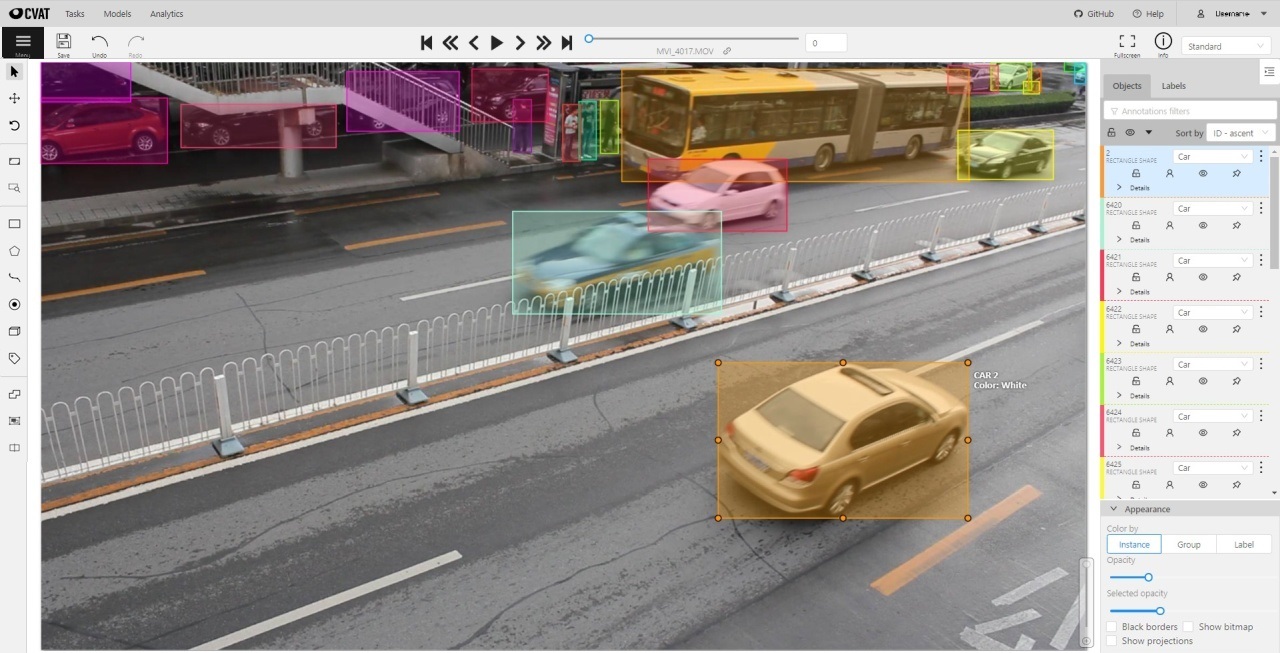
Read more in the section shape mode (advanced).
Track mode (basics)
Usage examples:
- Create new annotations for a sequence of frames.
- Add/modify/delete objects for existing annotations.
- Edit tracks, merge several rectangles into one track.
-
Like in the
Shape mode, you need to select aRectangleon the sidebar, in the appearing form, select the desiredLabeland theDrawing method.
-
Creating a track for an object (look at the selected car as an example):
-
Create a
RectangleinTrack modeby clicking onTrack.
-
In
Track modethe rectangle will be automatically interpolated on the next frames. -
The cyclist starts moving on frame #2270. Let's mark the frame as a key frame. You can press
Kfor that or click thestarbutton (see the screenshot below).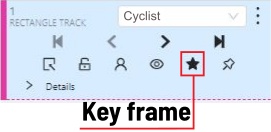
-
If the object starts to change its position, you need to modify the rectangle where it happens. It isn't necessary to change the rectangle on each frame, simply update several keyframes and the frames between them will be interpolated automatically.
-
Let's jump 30 frames forward and adjust the boundaries of the object. See an example below:

-
After that the rectangle of the object will be changed automatically on frames 2270 to 2300:

-
-
When the annotated object disappears or becomes too small, you need to finish the track. You have to choose
Outside Property, shortcutO.
-
If the object isn't visible on a couple of frames and then appears again, you can use the
Mergefeature to merge several individual tracks into one.
-
Create tracks for moments when the cyclist is visible:

-
Click
Mergebutton or press keyMand click on any rectangle of the first track and on any rectangle of the second track and so on: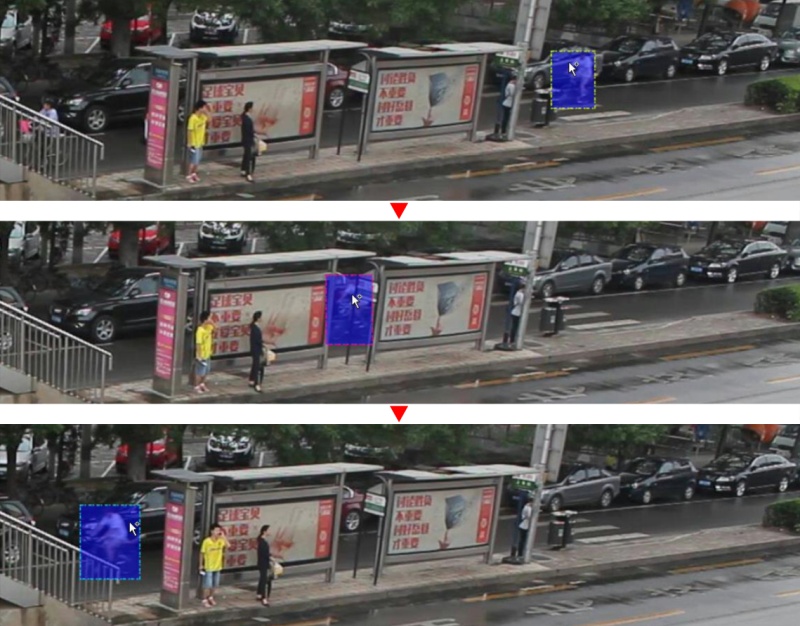
-
Click
Mergebutton or pressMto apply changes. -
The final annotated sequence of frames in
Interpolationmode can look like the clip below:
Read more in the section track mode (advanced).
-
Attribute annotation mode (basics)
-
In this mode you can edit attributes with fast navigation between objects and frames using a keyboard. Open the drop-down list in the top panel and select Attribute annotation Mode.

-
In this mode objects panel change to a special panel :
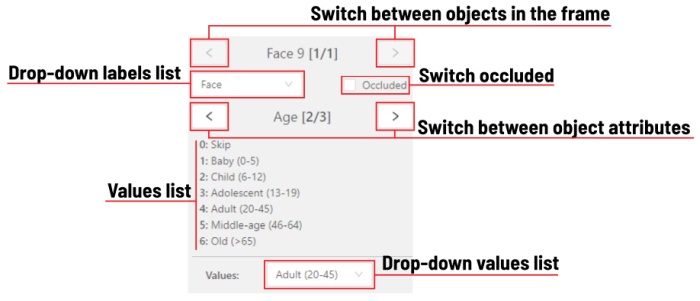
-
The active attribute will be red. In this case it is
gender. Look at the bottom side panel to see all possible shortcuts for changing the attribute. Press key2on your keyboard to assign a value (female) for the attribute or select from the drop-down list.
-
Press
Up Arrow/Down Arrowon your keyboard or click the buttons in the UI to go to the next/previous attribute. In this case, after pressingDown Arrowyou will be able to edit theAgeattribute.
-
Use
Right Arrow/Left Arrowkeys to move to the previous/next image with annotation.
To see all the hot keys available in the attribute annotation mode, press F2.
Read more in the section attribute annotation mode (advanced).
Downloading annotations
-
To download the latest annotations, you have to save all changes first. click the
Savebutton. There is aCtrl+Sshortcut to save annotations quickly. -
After that, сlick the
Menubutton. -
Press the
Dump Annotationbutton.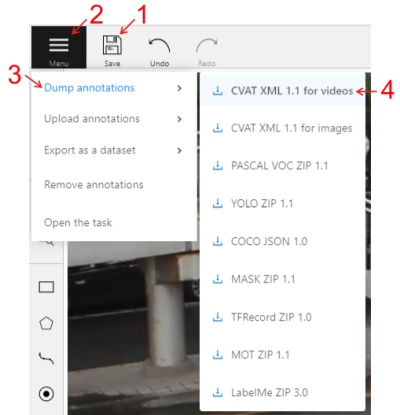
-
Choose format dump annotation file. Dump annotation are available in several formats:
- CVAT for video is highlighted if a task has the interpolation mode.
- CVAT for images is highlighted if a task has the annotation mode.

- PASCAL VOC
- (VOC) Segmentation mask — archive contains class and instance masks for each frame in the png format and a text file with the value of each color.
- YOLO
- COCO
- TFRecord
- MOT
- LabelMe 3.0
- Datumaro
Task synchronization with a repository
-
At the end of the annotation process, a task is synchronized by clicking
Synchronizeon the task page. Notice: this feature works only if a git repository was specified when the task was created.
-
After synchronization the button
Syncis highlighted in green. The annotation is now in the repository in a temporary branch.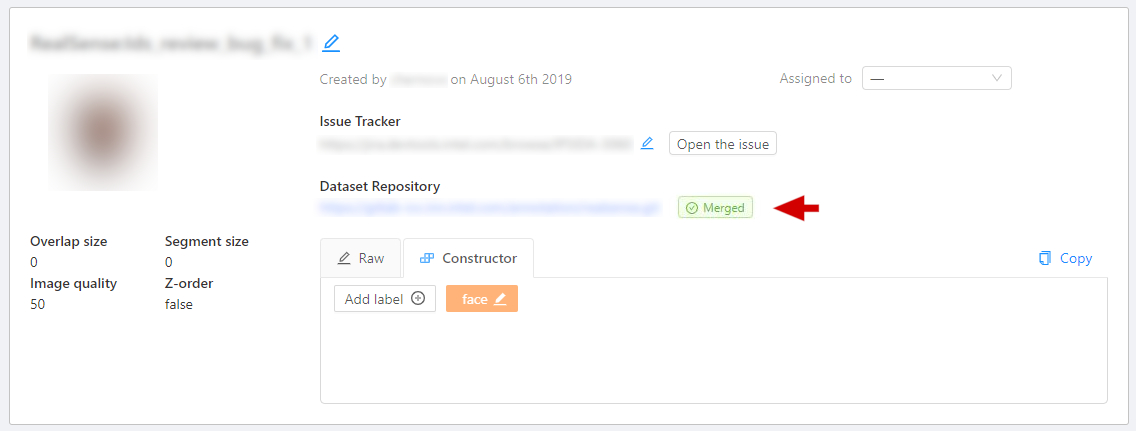
-
The next step is to go to the repository and manually create a pull request to the main branch.
-
After confirming the PR, when the annotation is saved in the main branch, the color of the task changes to blue.

Vocabulary
Label is a type of an annotated object (e.g. person, car, vehicle, etc.)

Attribute is a property of an annotated object (e.g. color, model, quality, etc.). There are two types of attributes:
-
Unique: immutable and can't be changed from frame to frame (e.g. age, gender, color, etc.)

-
Temporary: mutable and can be changed on any frame (e.g. quality, pose, truncated, etc.)

Track is a set of shapes on different frames which corresponds to one object.
Tracks are created in Track mode
Annotation is a set of shapes and tracks. There are several types of annotations:
- Manual which is created by a person
- Semi-automatic which is created mainly automatically, but the user provides some data (e.g. interpolation)
- Automatic which is created automatically without a person in the loop
Workspace
This is the main field in which drawing and editing objects takes place. In addition the workspace also has the following functions:
-
Right-clicking on an object calls up the
Object card- this is an element containing the necessary controls for changing the label and attributes of the object, as well as the action menu.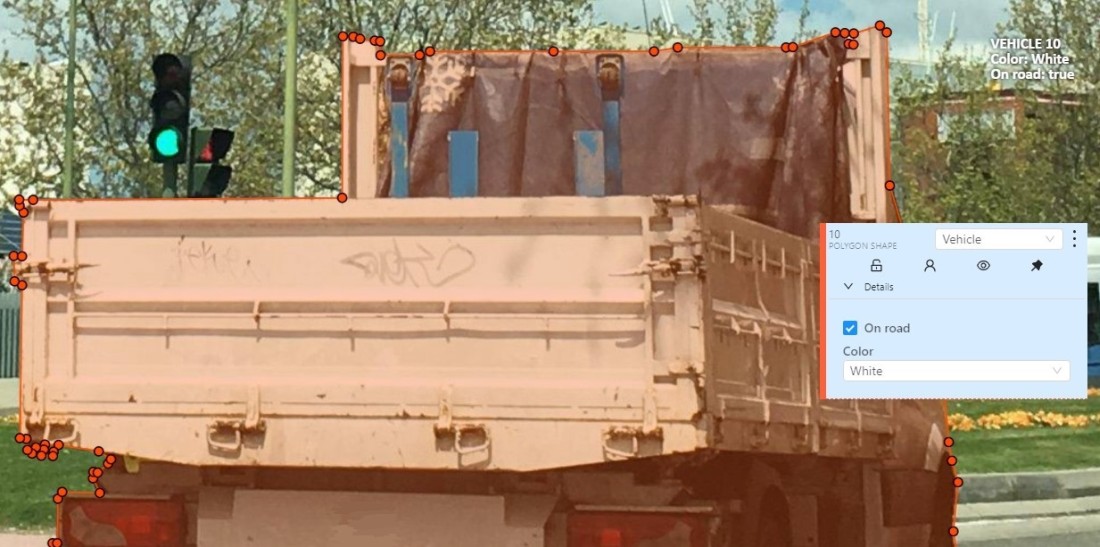
-
Right-clicking a point deletes it.

-
Z-axis slider- Allows you to switch annotation layers hiding the upper layers (slider is enabled if several z layers are on a frame). This element has a button for adding a new layer. When pressed, a new layer is added and switched to it. You can move objects in layers using the+and-keys.
Settings
To open the settings open the user menu in the header and select the settings item or press F3.

Settings have two tabs:
In tab Player you can:
-
Control step of
CandVshortcuts. -
Control speed of
Space/Playbutton. -
Select canvas background color. You can choose a background color or enter manually (in RGB or HEX format).
-
Show
Grid, change grid size, choose color and transparency: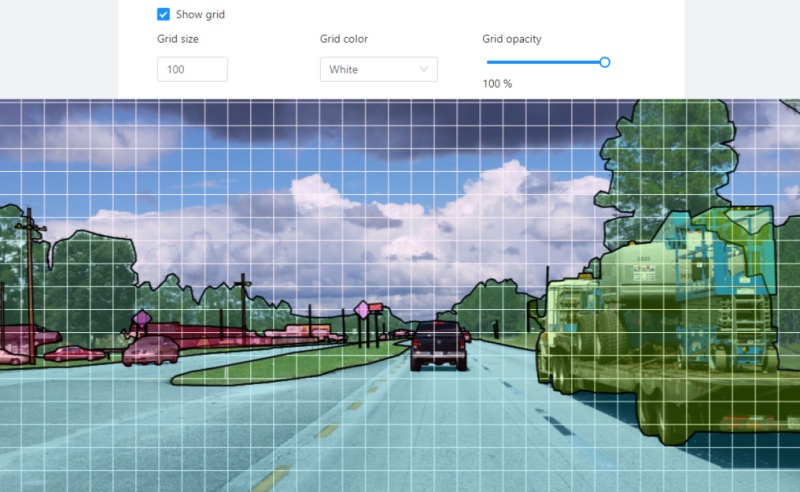
-
Show every image in full size or zoomed out like previous (it is enabled by default for interpolation mode and disabled for annotation mode).
-
Rotate all imagescheckbox — switch the rotation of all frames or an individual frame. -
Adjust
Brightness/Contrast/Saturationof too exposed or too dark images usingF3— color settings (changes displaying settings and not the image itself).
Shortcuts:
-
Shift+B+=/Shift+B+-for brightness. -
Shift+C+=/Shift+C+-for contrast. -
Shift+S+=/Shift+S+-for saturation.
-
Reset color settingsto default values.
In tab Workspace you can:

-
Enable auto savecheckbox — turned off by default. -
Auto save interval (min)input box — 15 minutes by default. -
Show all interpolation trackscheckbox — shows hidden objects on the side panel for every interpolated object (turned off by default). -
Always show object details- show text for an object on the canvas not only when the object is activated: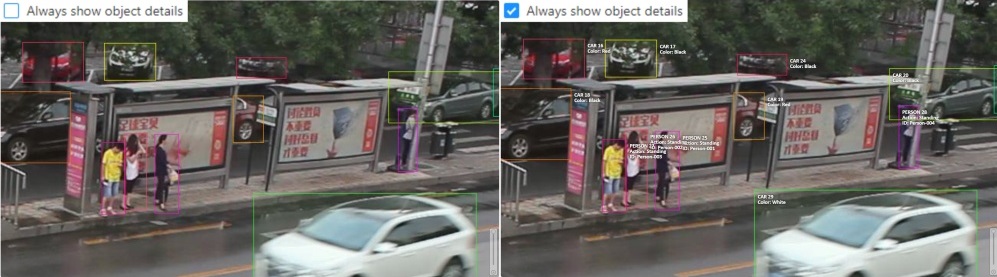
-
Automatic bordering- enable automatic bordering for polygons and polylines during drawing/editing. For more information To find out more, go to the section annotation with polygons. -
Attribute annotation mode (AAM) zoom margininput box — defines margins (in px) for shape in the attribute annotation mode. -
Press
Go backorF3to return to the annotation.
Top Panel

Menu button
It is the main menu of the annotation tool. It can be used to download, upload and remove annotations.

Button assignment:
Dump Annotations— downloads annotations from a task.Upload Annotations— uploads annotations into a task.Remove Annotations— removes annotations from the current job.Export as a dataset— download a data set from a task. Several formats are available:Open the task— opens a page with details about the task.Request a review- calls up the form to submit the job for a review, read more in the review section.Finish the job- changes the status of the job tocompletedand returns to the task page without review.Submit the review- (available during the review) calls up the form to submit a review, read more in the review section.
Save Work
Saves annotations for the current job. The button has an indication of the saving process.

Undo-redo buttons
Use buttons to undo actions or redo them.
Player
Go to the first /the latest frames.

Go to the next/previous frame with a predefined step. Shortcuts:
V — step backward, C — step forward. By default the step is 10 frames
(change at Account Menu —> Settings —> Player Step).

The button to go to the next / previous frame has the customization possibility. To customize, right-click on the button and select one of three options:
- The default option - go to the next / previous frame (the step is 1 frame).
- Go to the next / previous frame that has any objects (in particular filtered). Read the filter section to know the details how to use it.
- Go to the next / previous frame without annotation at all. Use this option in cases when you need to find missed frames quickly.
Shortcuts: D - previous, F - next.

Play the sequence of frames or the set of images.
Shortcut: Space (change at Account Menu —> Settings —> Player Speed).
Go to a specific frame. Press ~ to focus on the element.

Fullscreen Player
The fullscreen player mode. The keyboard shortcut is F11.

Info
Open the job info.

Overview:
Assinger- the one to whom the job is assigned.Reviewer– a user assigned to carry out the review, read more in the review section.Start Frame- the number of the first frame in this job.End Frame- the number of the last frame in this job.Frames- the total number of all frames in the job.
Annotations statistics:
This is a table number of created shapes, sorted by labels (e.g. vehicle, person) and type of annotation (shape, track). As well as the number of manual and interpolated frames.
UI switcher
Switching between user interface modes.

Controls sidebar
Navigation block - contains tools for moving and rotating images.
| Icon | Description |
|---|---|
 |
Cursor (Esc)- a basic annotation pedacting tool. |
 |
Move the image- a tool for moving around the image withoutthe possibility of editing. |
 |
Rotate- two buttons to rotate the current framea clockwise ( Ctrl+R) and anticlockwise (Ctrl+Shift+R).You can enable Rotate all images in the settings to rotate all the images in the job |
Zoom block - contains tools for image zoom.
| Icon | Description |
|---|---|
 |
Fit image- fits image into the workspace size.Shortcut - double click on an image |
 |
Select a region of interest- zooms in on a selected region.You can use this tool to quickly zoom in on a specific part of the frame. |
Shapes block - contains all the tools for creating shapes.
| Icon | Description | Links to section |
|---|---|---|
 |
AI Tools |
AI Tools |
 |
OpenCV |
OpenCV |
 |
Rectangle |
Shape mode; Track mode; Drawing by 4 points |
 |
Polygon |
Annotation with polygons; Track mode with polygons |
 |
Polyline |
Annotation with polylines |
 |
Points |
Annotation with points |
 |
Cuboid |
Annotation with cuboids |
 |
Tag |
Annotation with tags |
 |
Open an issue |
Review (available only in review mode) |
Edit block - contains tools for editing tracks and shapes.
| Icon | Description | Links to section |
|---|---|---|
 |
Merge Shapes(M) — starts/stops the merging shapes mode. |
Track mode (basics) |
 |
Group Shapes (G) — starts/stops the grouping shapes mode. |
Shape grouping |
 |
Split — splits a track. |
Track mode (advanced) |
Objects sidebar
Hide - the button hides the object's sidebar.

Objects
Filter input box

The way how to use filters is described in the advanced guide here.
List of objects
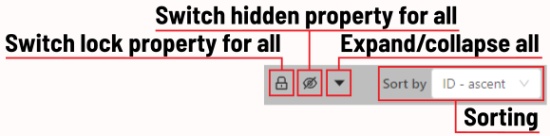
- Switch lock property for all - switches lock property of all objects in the frame.
- Switch hidden property for all - switches hide property of all objects in the frame.
- Expand/collapse all - collapses/expands the details field of all objects in the frame.
- Sorting - sort the list of objects: updated time, ID - accent, ID - descent
In the objects sidebar you can see the list of available objects on the current frame. The following figure is an example of how the list might look like:
| Shape mode | Track mode |
|---|---|
 |
 |
Objects on the side bar
The type of a shape can be changed by selecting Label property. For instance, it can look like shown on the figure below:

Object action menu
The action menu calls up the button:

The action menu contains:
-
Create object URL- puts a link to an object on the clipboard. After you open the link, this object will be filtered. -
Make a copy- copies an object. The keyboard shortcut isCtrl + CCtrl + V. -
Propagate- Сopies the form to several frames, invokes a dialog box in which you can specify the number of copies or the frame onto which you want to copy the object. The keyboard shortcutCtrl + B.
-
To background- moves the object to the background. The keyboard shortcut-,_. -
To foreground- moves the object to the foreground. The keyboard shortcut+,=. -
Change instance color- choosing a color using the color picker (available only in instance mode).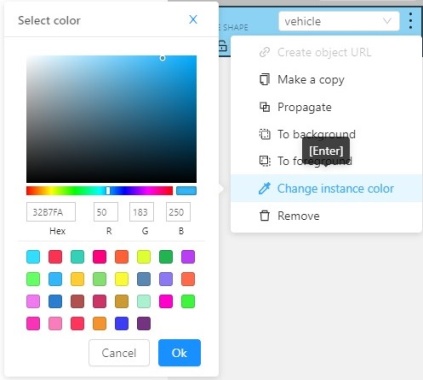
-
Remove- removes the object. The keyboard shortcutDel,Shift+Del.
A shape can be locked to prevent its modification or moving by an accident. Shortcut to lock an object: L.

A shape can be Occluded. Shortcut: Q. Such shapes have dashed boundaries.


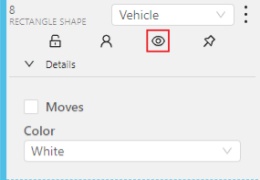
You can change the way an object is displayed on a frame (show or hide).
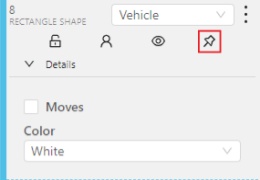
Switch pinned property - when enabled, a shape cannot be moved by dragging or dropping.
By clicking on the Details button you can collapse or expand the field with all the attributes of the object.

Labels
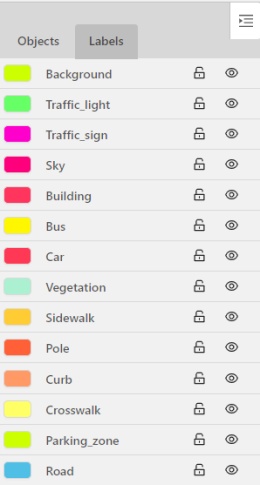
In this tab you can lock or hide objects of a certain label. To change the color for a specific label, you need to go to the task page and select the color by clicking the edit button, this way you will change the label color for all jobs in the task.
Appearance
Color By options
Change the color scheme of annotation:
-
Instance— every shape has random color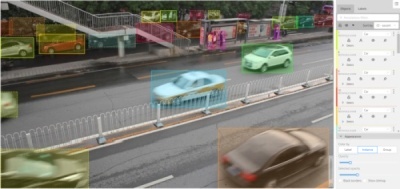
-
Group— every group of shape has its own random color, ungrouped shapes are white
-
Label— every label (e.g. car, person) has its own random color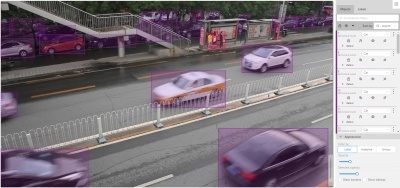
You can change any random color pointing to a needed box on a frame or on an object sidebar.
Fill Opacity slider
Change the opacity of every shape in the annotation.

Selected Fill Opacity slider
Change the opacity of the selected object's fill.

Outlines borders checkbox
You can change a special shape border color by clicking on the Eyedropper icon.

Show bitmap checkbox
If enabled all shapes are displayed in white and the background is black.
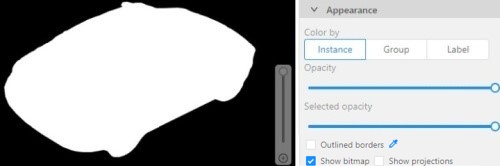
Show projections checkbox
Enables / disables the display of auxiliary perspective lines. Only relevant for cuboids

Shape mode (advanced)
Basic operations in the mode were described in section shape mode (basics).
Occluded
Occlusion is an attribute used if an object is occluded by another object or
isn't fully visible on the frame. Use Q shortcut to set the property
quickly.

Example: the three cars on the figure below should be labeled as occluded.

If a frame contains too many objects and it is difficult to annotate them
due to many shapes placed mostly in the same place, it makes sense
to lock them. Shapes for locked objects are transparent, and it is easy to
annotate new objects. Besides, you can't change previously annotated objects
by accident. Shortcut: L.

Track mode (advanced)
Basic operations in the mode were described in section track mode (basics).
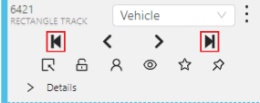
Shapes that were created in the track mode, have extra navigation buttons.
-
These buttons help to jump to the previous/next keyframe.

-
The button helps to jump to the initial frame and to the last keyframe.
You can use the Split function to split one track into two tracks:

Attribute annotation mode (advanced)
Basic operations in the mode were described in section attribute annotation mode (basics).
It is possible to handle lots of objects on the same frame in the mode.
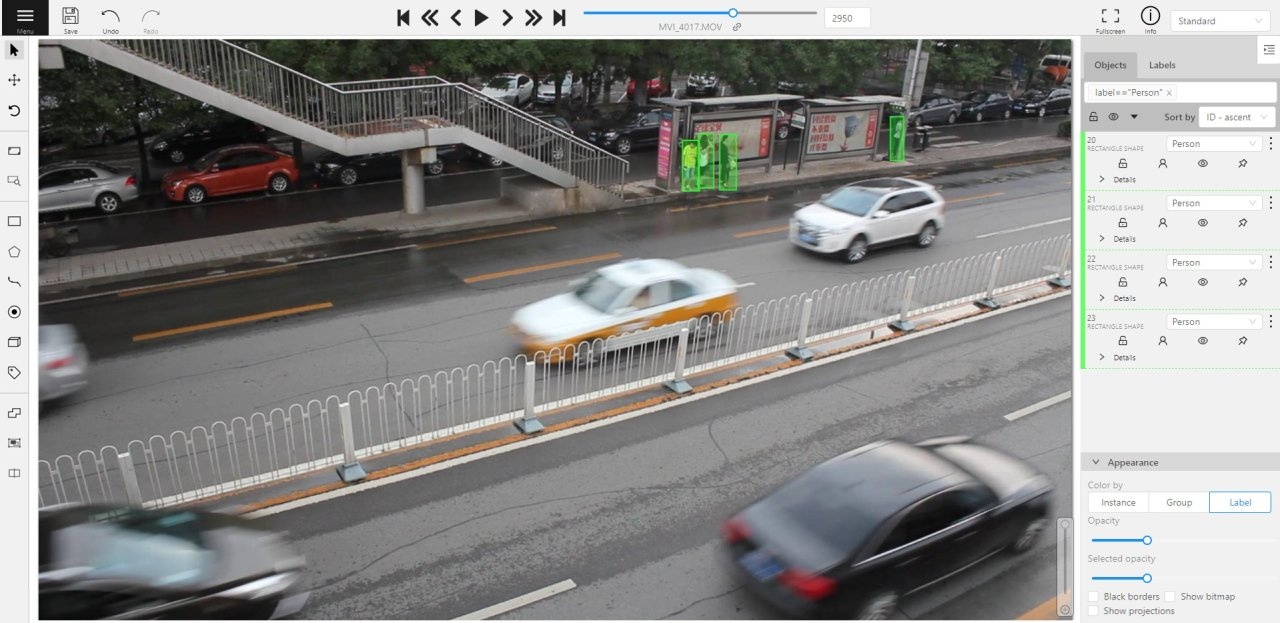
It is more convenient to annotate objects of the same type. In this case you can apply
the appropriate filter. For example, the following filter will
hide all objects except person: label=="Person".
To navigate between objects (person in this case),
use the following buttons switch between objects in the frame on the special panel:
or shortcuts:
Tab— go to the next objectShift+Tab— go to the previous object.
In order to change the zoom level, go to settings (press F3)
in the workspace tab and set the value Attribute annotation mode (AAM) zoom margin in px.
AI Tools
The tool is designed for semi-automatic and automatic annotation using DL models. The tool is available only if there is a corresponding model. For more details about DL models read the Models section.
Interactors
Interactors are used to create a polygon semi-automatically. Supported DL models are not bound to the label and can be used for any objects. To create a polygon usually you need to use regular or positive points. For some kinds of segmentation negative points are available. Positive points are the points related to the object. Negative points should be placed outside the boundary of the object. In most cases specifying positive points alone is enough to build a polygon.
-
Before you start, select the magic wand on the controls sidebar and go to the
Interactorstab. Then select a label for the polygon and a required DL model.
-
Click
Interactto enter the interaction mode. Now you can place positive and/or negative points. Left click creates a positive point and right click creates a negative point.Deep extreme cutmodel requires a minimum of 4 points. After you set 4 positive points, a request will be sent to the server and when the process is complete a polygon will be created. If you are not satisfied with the result, you can set additional points or remove points by left-clicking on it. If you want to postpone the request and create a few more points, hold downCtrland continue, the request will be sent after the key is released.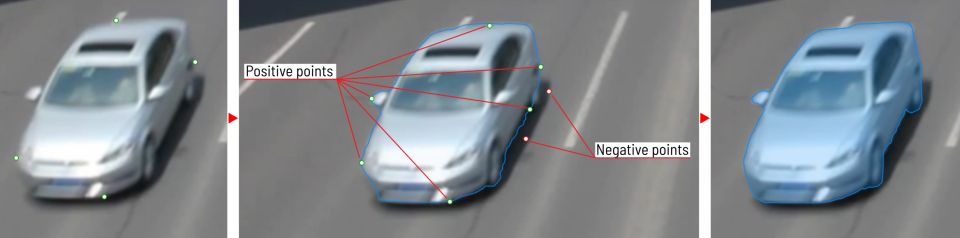
-
To finish interaction, click on the icon on the controls sidebar or press
Non your keyboard. -
When the object is finished, you can edit it like a polygon. You can read about editing polygons in the Annotation with polygons section.
Detectors
Detectors are used to automatically annotate one frame. Supported DL models are suitable only for certain labels.
-
Before you start, click the magic wand on the controls sidebar and select the Detectors icon tab. You need to match the labels of the DL model (left column) with the labels in your task (right column). Then click
Annotate.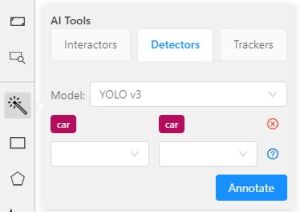
-
This action will automatically annotates one frame. In the Automatic annotation section you can read how to make automatic annotation of all frames.
OpenCV tools
The tool based on Open CV Computer Vision library which is an open-source product that includes many CV algorithms. Some of these algorithms can be used to simplify the annotation process.
First step to work with OpenCV is to load it into CVAT. Click on the toolbar icon, then click Load OpenCV.
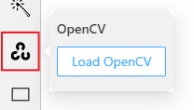
Once it is loaded, the tool's functionality will be available.
Intelligent scissors
Intelligent scissors is an CV method of creating a polygon by placing points with automatic drawing of a line between them. The distance between the adjacent points is limited by the threshold of action, displayed as a red square which is tied to the cursor.
-
First, select the label and then click on the
intelligent scissorsbutton.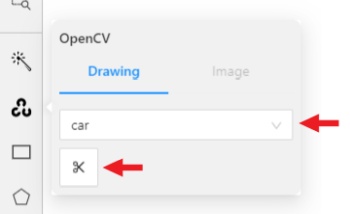
-
Create the first point on the boundary of the allocated object. You will see a line repeating the outline of the object.
-
Place the second point, so that the previous point is within the restrictive threshold. After that a line repeating the object boundary will be automatically created between the points.
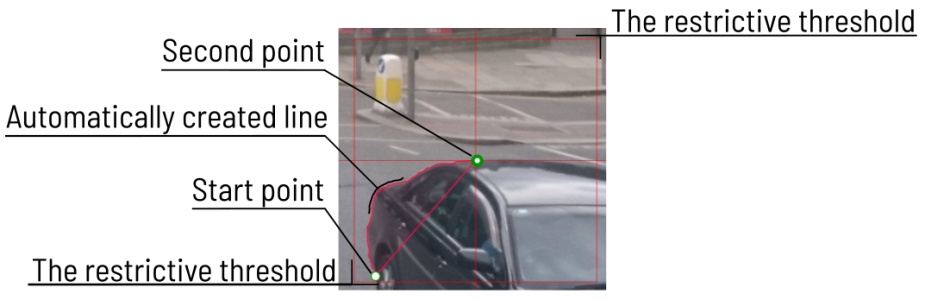
To increase or lower the action threshold, hold
Ctrland scroll the mouse wheel. Increasing action threshold will affect the performance. During the drawing process you can remove the last point by clicking on it with the left mouse button. -
Once all the points are placed, you can complete the creation of the object by clicking on the icon or clicking
N. As a result, a polygon will be created (read more about the polygons in the annoation with polygons).
Annotation with rectangle by 4 points
It is an efficient method of bounding box annotation, proposed here. Before starting, you need to make sure that the drawing method by 4 points is selected.

Press Shape or Track for entering drawing mode. Click on four extreme points:
the top, bottom, left- and right-most physical points on the object.
Drawing will be automatically completed right after clicking the fourth point.
Press Esc to cancel editing.

Annotation with polygons
Manual drawing
It is used for semantic / instance segmentation.
Before starting, you need to select Polygon on the controls sidebar and choose the correct Label.
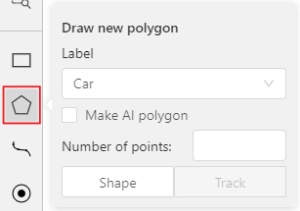
- Click
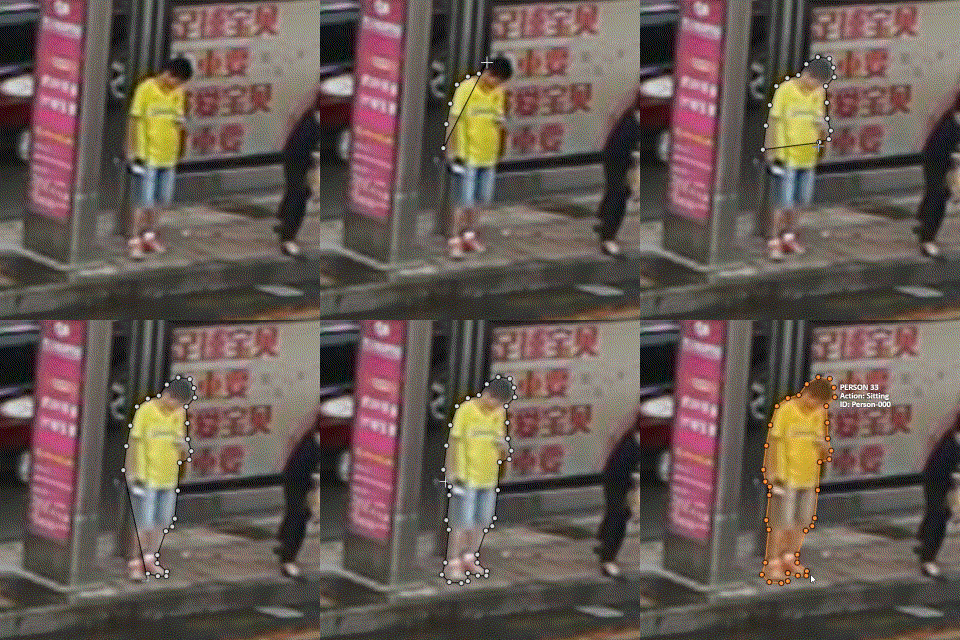
Shapeto enter drawing mode. There are two ways to draw a polygon: either create points by clicking or by dragging the mouse on the screen while holdingShift.
| Clicking points | Holding Shift+Dragging |
|---|---|
 |
 |
- When
Shiftisn't pressed, you can zoom in/out (when scrolling the mouse wheel) and move (when clicking the mouse wheel and moving the mouse), you can also delete the previous point by right-clicking on it. - Press
Nagain for completing the shape. - After creating the polygon, you can move the points or delete them by right-clicking and selecting
Delete pointor clicking with pressedAltkey in the context menu.
Drawing using automatic borders

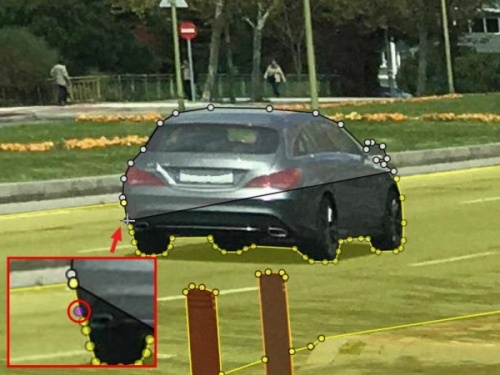
You can use auto borders when drawing a polygon. Using automatic borders allows you to automatically trace the outline of polygons existing in the annotation.
-
To do this, go to settings -> workspace tab and enable
Automatic Borderingor pressCtrlwhile drawing a polygon.
-
Start drawing / editing a polygon.
-
Points of other shapes will be highlighted, which means that the polygon can be attached to them.
-
Define the part of the polygon path that you want to repeat.

-
Click on the first point of the contour part.

-
Then click on any point located on part of the path. The selected point will be highlighted in purple.
-
Сlick on the last point and the outline to this point will be built automatically.

Besides, you can set a fixed number of points in the Number of points field, then
drawing will be stopped automatically. To enable dragging you should right-click
inside the polygon and choose Switch pinned property.
Below you can see results with opacity and black stroke:

If you need to annotate small objects, increase Image Quality to
95 in Create task dialog for your convenience.
Edit polygon
To edit a polygon you have to click with pressed Shift, it will open the polygon editor.
-
There you can create new points or delete part of a polygon closing the line on another point.
-
After closing the polygon, you can select the part of the polygon that you want to leave.
-
You can press
Escto cancel editing.
Annotation with polylines
It is used for road markup annotation etc.
Before starting, you need to select the Polyline. You can set a fixed number of points
in the Number of points field, then drawing will be stopped automatically.

Click Shape to enter drawing mode. There are two ways to draw a polyline —
you either create points by clicking or by dragging a mouse on the screen while holding Shift.
When Shift isn't pressed, you can zoom in/out (when scrolling the mouse wheel)
and move (when clicking the mouse wheel and moving the mouse), you can delete
previous points by right-clicking on it. Press N again to complete the shape.
You can delete a point by clicking on it with pressed Ctrl or right-clicking on a point
and selecting Delete point. Click with pressed Shift will open a polyline editor.
There you can create new points(by clicking or dragging) or delete part of a polygon closing
the red line on another point. Press Esc to cancel editing.

Annotation with points
Points in shape mode
It is used for face, landmarks annotation etc.
Before you start you need to select the Points. If necessary you can set a fixed number of points
in the Number of points field, then drawing will be stopped automatically.

Click Shape to entering the drawing mode. Now you can start annotation of the necessary area.
Points are automatically grouped — all points will be considered linked between each start and finish.
Press N again to finish marking the area. You can delete a point by clicking with pressed Ctrl
or right-clicking on a point and selecting Delete point. Clicking with pressed Shift will open the points
shape editor. There you can add new points into an existing shape. You can zoom in/out (when scrolling the mouse wheel)
and move (when clicking the mouse wheel and moving the mouse) while drawing. You can drag an object after
it has been drawn and change the position of individual points after finishing an object.

Linear interpolation with one point
You can use linear interpolation for points to annotate a moving object:
-
Before you start, select the
Points. -
Linear interpolation works only with one point, so you need to set
Number of pointsto 1. -
After that select the
Track.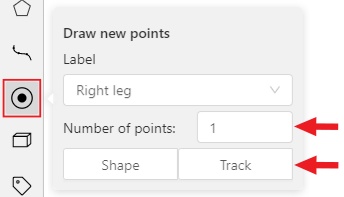
-
Click
Trackto enter the drawing mode left-click to create a point and after that shape will be automatically completed.
-
Move forward a few frames and move the point to the desired position, this way you will create a keyframe and intermediate frames will be drawn automatically. You can work with this object as with an interpolated track: you can hide it using the
Outside, move around keyframes, etc.
-
This way you'll get linear interpolation using the
Points.
Annotation with cuboids
It is used to annotate 3 dimensional objects such as cars, boxes, etc... Currently the feature supports one point perspective and has the constraint where the vertical edges are exactly parallel to the sides.
Creating the cuboid
Before you start, you have to make sure that Cuboid is selected and choose a drawing method ”from rectangle” or “by 4 points”.
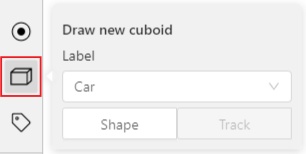
Drawing cuboid by 4 points
Choose a drawing method “by 4 points” and click Shape to enter the drawing mode. There are many ways to draw a cuboid. You can draw the cuboid by placing 4 points, after that the drawing will be completed automatically. The first 3 points determine the plane of the cuboid while the last point determines the depth of that plane. For the first 3 points, it is recommended to only draw the 2 closest side faces, as well as the top and bottom face.
A few examples:

Drawing cuboid from rectangle
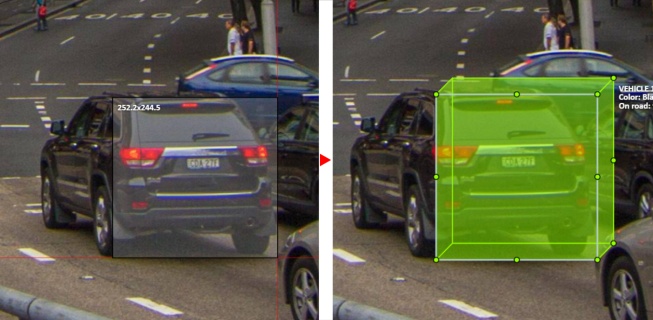
Choose a drawing method “from rectangle” and click Shape to enter the drawing mode. When you draw using the rectangle method, you must select the frontal plane of the object using the bounding box. The depth and perspective of the resulting cuboid can be edited.
Example:
Editing the cuboid

The cuboid can be edited in multiple ways: by dragging points, by dragging certain faces or by dragging planes. First notice that there is a face that is painted with gray lines only, let us call it the front face.
You can move the cuboid by simply dragging the shape behind the front face. The cuboid can be extended by dragging on the point in the middle of the edges. The cuboid can also be extended up and down by dragging the point at the vertices.

To draw with perspective effects it should be assumed that the front face is the closest to the camera.
To begin simply drag the points on the vertices that are not on the gray/front face while holding Shift.
The cuboid can then be edited as usual.

If you wish to reset perspective effects, you may right click on the cuboid,
and select Reset perspective to return to a regular cuboid.

The location of the gray face can be swapped with the adjacent visible side face.
You can do it by right clicking on the cuboid and selecting Switch perspective orientation.
Note that this will also reset the perspective effects.

Certain faces of the cuboid can also be edited, these faces are: the left, right and dorsal faces, relative to the gray face. Simply drag the faces to move them independently from the rest of the cuboid.

You can also use cuboids in track mode, similar to rectangles in track mode (basics and advanced) or Track mode with polygons
Annotation with Tags
It is used to annotate frames, tags are not displayed in the workspace.
Before you start, open the drop-down list in the top panel and select Tag annotation.

The objects sidebar will be replaced with a special panel for working with tags.
Here you can select a label for a tag and add it by clicking on the Add tag button.
You can also customize hotkeys for each label.

If you need to use only one label for one frame, then enable the Automatically go to the next frame
checkbox, then after you add the tag the frame will automatically switch to the next.
Track mode with polygons
Polygons in the track mode allow you to mark moving objects more accurately other than using a rectangle (Tracking mode (basic); Tracking mode (advanced)).
-
To create a polygon in the track mode, click the
Trackbutton.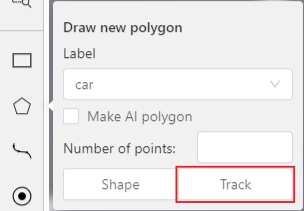
-
Create a polygon the same way as in the case of Annotation with polygons. Press
Nto complete the polygon. -
Pay attention to the fact that the created polygon has a starting point and a direction, these elements are important for annotation of the following frames.
-
After going a few frames forward press
Shift+N, the old polygon will disappear and you can create a new polygon. The new starting point should match the starting point of the previously created polygon (in this example, the top of the left mirror). The direction must also match (in this example, clockwise). After creating the polygon, pressNand the intermediate frames will be interpolated automatically.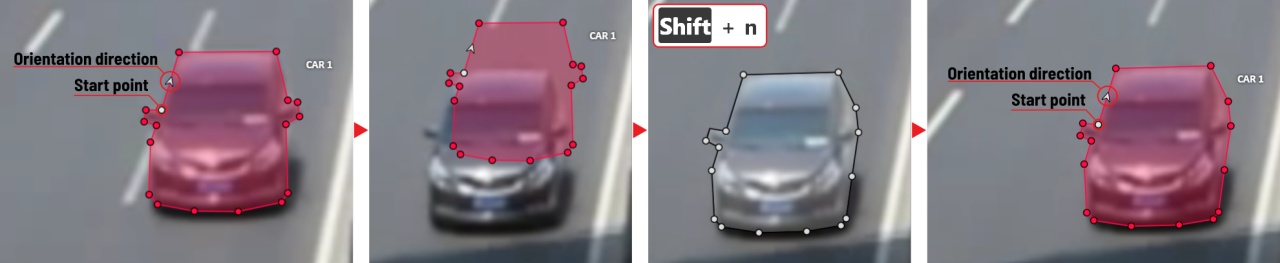
-
If you need to change the starting point, right-click on the desired point and select
Set starting point. To change the direction, right-click on the desired point and select switch orientation.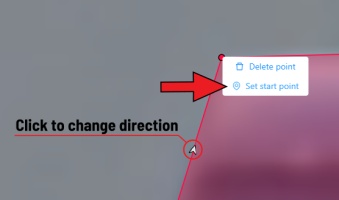
There is no need to redraw the polygon every time using Shift+N,
instead you can simply move the points or edit a part of the polygon by pressing Shift+Click.
Review
A special mode to check the annotation allows you to point to an object or area in the frame containing an error.
To go into review mode, you need to select Request a review in the menu and assign the user to run a check.

After that, the job status will be changed to validation
and the reviewer will be able to open the task in review mode.
Review mode is a UI mode, there is a special "issue" tool which you can use to identify objects
or areas in the frame and describe the problem.
-
To do this, first click
open an issueicon on the controls sidebar: -
Then click on an object in the frame to highlight the object or highlight the area by holding the left mouse button and describe the problem. The object or area will be shaded in red.
-
The created issue will appear in the workspace and in the
issuestab on the objects sidebar. -
After you save the annotation, other users will be able to see the problem, comment on each issue and change the status of the problem to
resolved. -
You can use the arrows on the issues tab to navigate the frames that contain problems.

-
Once all the problems are marked, save the annotation, open the menu and select "submit the review". After that you'll see a form containing the verification statistics, here you can give an assessment of the job and choose further actions:
- Accept - changes the status of the job to
completed. - Review next – passes the job to another user for re-review.
- Reject - changes the status of the job to
annotation.

- Accept - changes the status of the job to
Automatic annotation
Automatic Annotation is used for creating preliminary annotations.
To use Automatic Annotation you need a DL model. You can use primary models or models uploaded by a user.
You can find the list of available models in the Models section.
-
To launch automatic annotation, you should open the dashboard and find a task which you want to annotate. Then click the
Actionsbutton and choose optionAutomatic Annotationfrom the dropdown menu.
-
In the dialog window select a model you need. DL models are created for specific labels, e.g. the Crossroad model was taught using footage from cameras located above the highway and it is best to use this model for the tasks with similar camera angles. If it's necessary select the
Clean old annotationscheckbox. Adjust the labels so that the task labels will correspond to the labels of the DL model. For example, let’s consider a task where you have to annotate labels “car” and “person”. You should connect the “person” label from the model to the “person” label in the task. As for the “car” label, you should choose the most fitting label available in the model - the “vehicle” label. The task requires to annotate cars only and choosing the “vehicle” label implies annotation of all vehicles, in this case using auto annotation will help you complete the task faster. ClickSubmitto begin the automatic annotation process.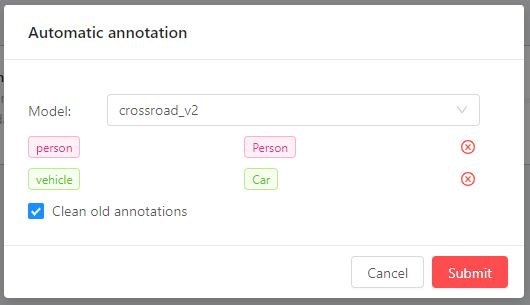
-
At runtime - you can see the percentage of completion. You can cancel the automatic annotation by clicking on the
Cancelbutton.
-
The end result of an automatic annotation is an annotation with separate rectangles (or other shapes)
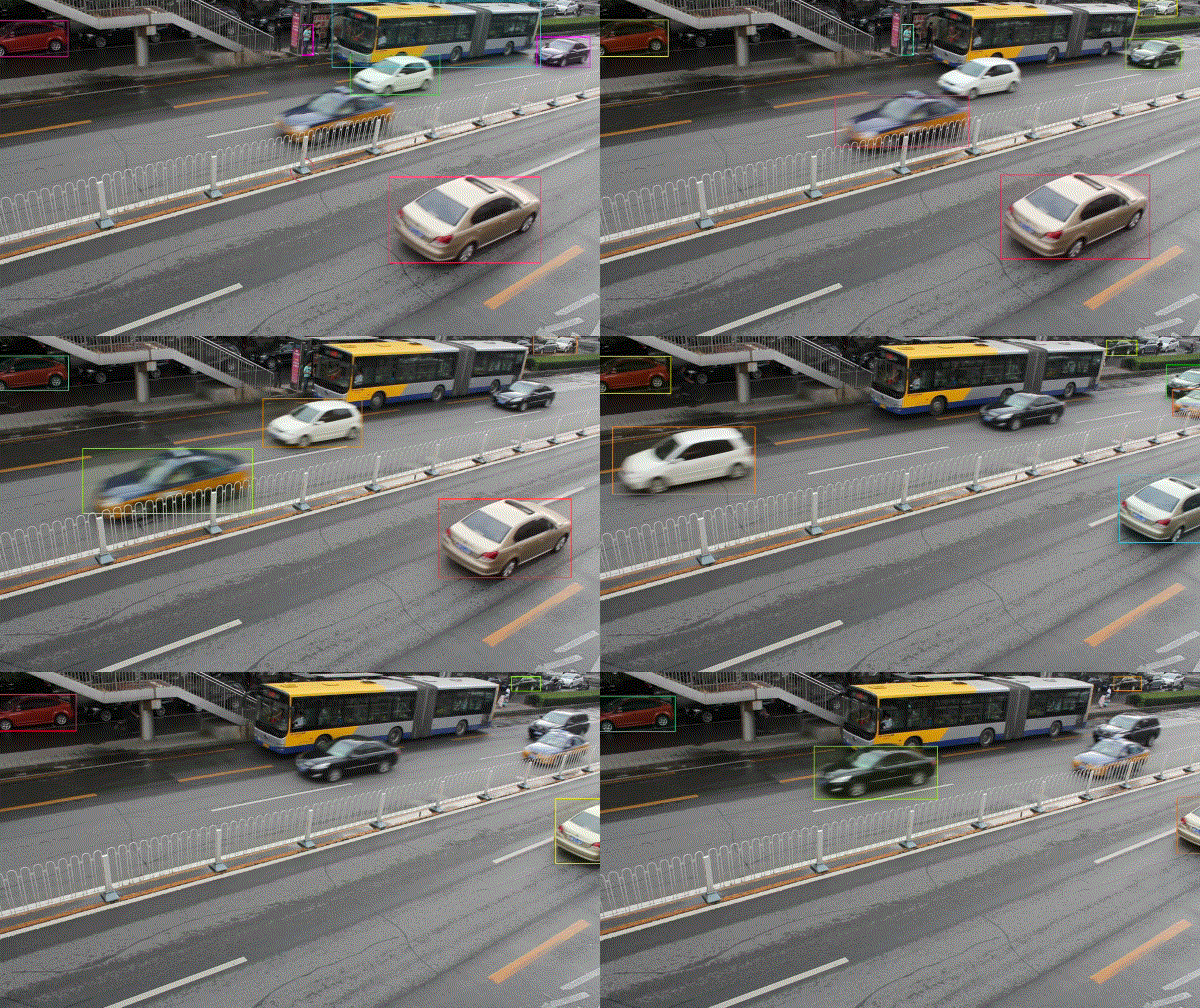
-
You can combine separate bounding boxes into tracks using the
Person reidentificationmodel. To do this, click on the automatic annotation item in the action menu again and select the model of theReIDtype (in this case thePerson reidentificationmodel). You can set the following parameters:- Model
Thresholdis a maximum cosine distance between objects’ embeddings. Maximum distancedefines a maximum radius that an object can diverge between adjacent frames.

- Model
-
You can remove false positives and edit tracks using
SplitandMergefunctions.
Shape grouping
This feature allows us to group several shapes.
You may use the Group Shapes button or shortcuts:
G— start selection / end selection in group modeEsc— close group modeShift+G— reset group for selected shapes
You may select shapes clicking on them or selecting an area.
Grouped shapes will have group_id filed in dumped annotation.
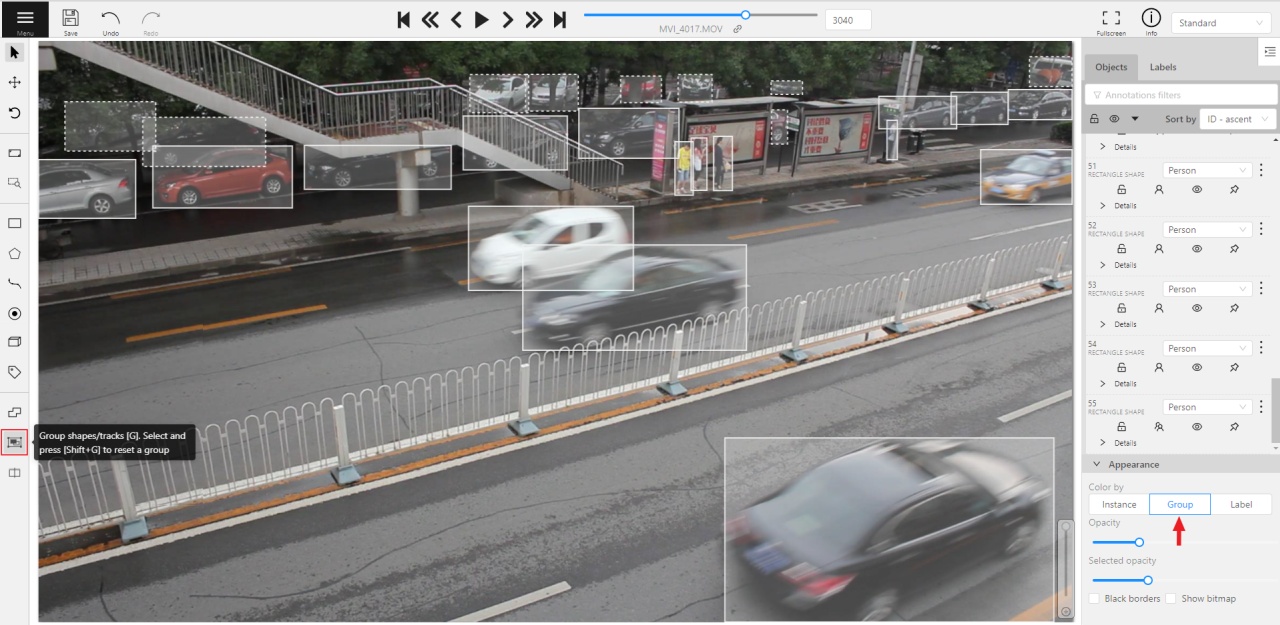
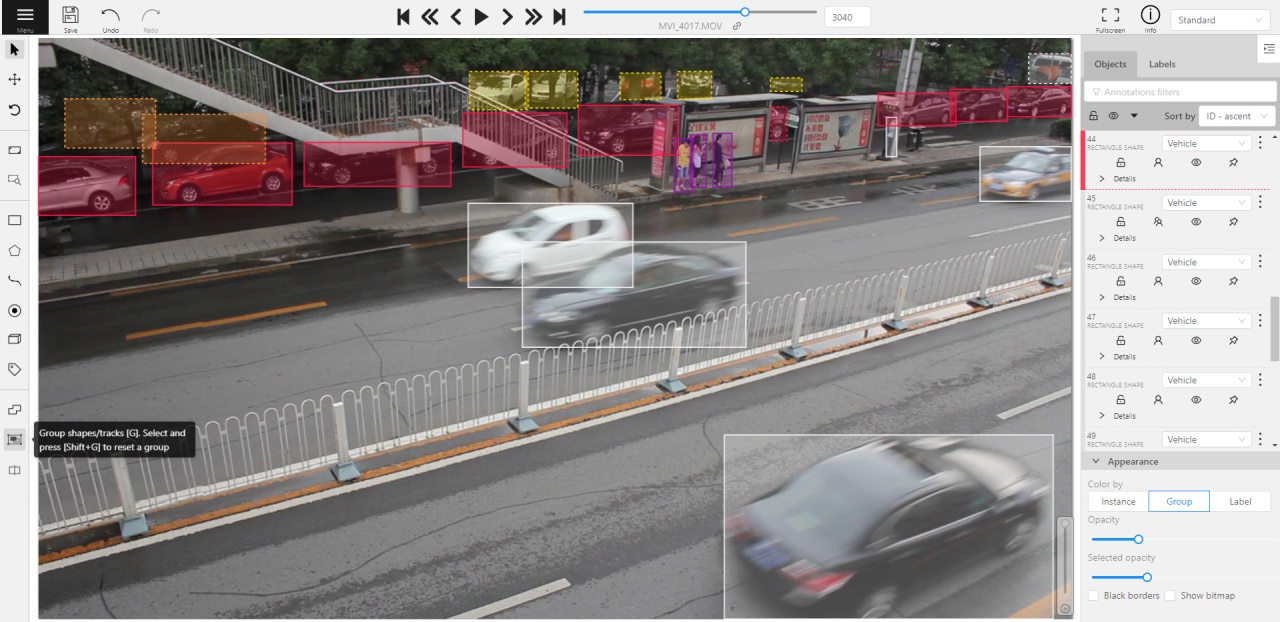
Also you may switch color distribution from an instance (default) to a group.
You have to switch Color By Group checkbox for that.
Shapes that don't have group_id, will be highlighted in white.
Filter
There are some reasons to use the feature:
- When you use a filter, objects that don't match the filter will be hidden.
- The fast navigation between frames which have an object of interest.
Use the
Left Arrow/Right Arrowkeys for this purpose or customize the UI buttons by right-clicking and selectswitching by filter. If there are no objects which correspond to the filter, you will go to the previous / next frame which contains any annotated objects.
To apply filters you need to click on the button on the top panel.
It will open a window for filter input. Here you will find two buttons: Add rule and Add group.

Rules
The "Add rule" button adds a rule for objects display. A rule may use the following properties:

Supported properties:
| Properties | Supported values | Description |
|---|---|---|
Label |
all the label names that are in the task | label name |
Type |
shape, track or tag | type of object |
Shape |
all shape types | type of shape |
Occluded |
true or false | occluded (read more) |
Width |
number of px or field | shape width |
Height |
number of px or field | shape height |
ServerID |
number or field | ID of the object on the server (You can find out by forming a link to the object through the Action menu) |
ObjectID |
number or field | ID of the object in your client (indicated on the objects sidebar) |
Attributes |
some other fields including attributes with a similar type or a specific attribute value |
any fields specified by a label |
Supported operators for properties:
== - Equally; != - Not equal; > - More; >= - More or equal; < - Less; <= - Less or equal;
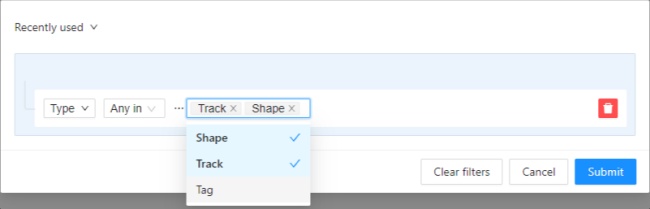
Any in; Not in - these operators allow you to set multiple values in one rule;
Is empty; is not empty – these operators don't require to input a value.
Between; Not between – these operators allow you to choose a range between two values.
Some properties support two types of values that you can choose:

You can add multiple rules, to do so click the add rule button and set another rule. Once you've set a new rule, you'll be able to choose which operator they will be connected by: And or Or.

All subsequent rules will be joined by the chosen operator. Click Submit to apply the filter or if you want multiple rules to be connected by different operators, use groups.
Groups
To add a group, click the "add group" button. Inside the group you can create rules or groups.

If there is more than one rule in the group, they can be connected by And or Or operators.
The rule group will work as well as a separate rule outside the group and will be joined by an
operator outside the group.
You can create groups within other groups, to do so you need to click the add group button within the group.
You can move rules and groups. To move the rule or group, drag it by the button.
To remove the rule or group, click on the Delete button.

If you activate the Not button, objects that don't match the group will be filtered out.
Click Submit to apply the filter.
The "Cancel" button undoes the filter. The Clear filter button removes the filter.
Once applied filter automatically appears in Recent used list. Maximum length of the list is 10.
Analytics
If your CVAT instance was created with analytics support, you can press the Analytics button in the dashboard
and analytics and journals will be opened in a new tab.

The analytics allows you to see how much time every user spends on each task and how much work they did over any time range.

It also has an activity graph which can be modified with a number of users shown and a timeframe.

Shortcuts
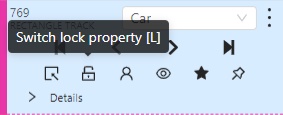
Many UI elements have shortcut hints. Put your pointer to a required element to see it.
| Shortcut | Common |
|---|---|
| Main functions | |
F1 |
Open/hide the list of available shortcuts |
F2 |
Go to the settings page or go back |
Ctrl+S |
Go to the settings page or go back |
Ctrl+Z |
Cancel the latest action related with objects |
Ctrl+Shift+Z or Ctrl+Y |
Cancel undo action |
Hold Mouse Wheel |
To move an image frame (for example, while drawing) |
| Player | |
F |
Go to the next frame |
D |
Go to the previous frame |
V |
Go forward with a step |
C |
Go backward with a step |
Right |
Search the next frame that satisfies to the filters or next frame which contain any objects |
Left |
Search the previous frame that satisfies to the filters or previous frame which contain any objects |
Space |
Start/stop automatic changing frames |
` or ~ |
Focus on the element to change the current frame |
| Modes | |
N |
Repeat the latest procedure of drawing with the same parameters |
M |
Activate or deactivate mode to merging shapes |
Alt+M |
Activate or deactivate mode to spliting shapes |
G |
Activate or deactivate mode to grouping shapes |
Shift+G |
Reset group for selected shapes (in group mode) |
Esc |
Cancel any active canvas mode |
| Image operations | |
Ctrl+R |
Change image angle (add 90 degrees) |
Ctrl+Shift+R |
Change image angle (substract 90 degrees) |
Shift+B+= |
Increase brightness level for the image |
Shift+B+- |
Decrease brightness level for the image |
Shift+C+= |
Increase contrast level for the image |
Shift+C+- |
Decrease contrast level for the image |
Shift+S+= |
Increase saturation level for the image |
Shift+S+- |
Increase contrast level for the image |
Shift+G+= |
Make the grid more visible |
Shift+G+- |
Make the grid less visible |
Shift+G+Enter |
Set another color for the image grid |
| Operations with objects | |
Ctrl |
Switch automatic bordering for polygons and polylines during drawing/editing |
Hold Ctrl |
When the shape is active and fix it |
Alt+Click on point |
Deleting a point (used when hovering over a point of polygon, polyline, points) |
Shift+Click on point |
Editing a shape (used when hovering over a point of polygon, polyline or points) |
Right-Click on shape |
Display of an object element from objects sidebar |
T+L |
Change locked state for all objects in the sidebar |
L |
Change locked state for an active object |
T+H |
Change hidden state for objects in the sidebar |
H |
Change hidden state for an active object |
Q or / |
Change occluded property for an active object |
Del or Shift+Del |
Delete an active object. Use shift to force delete of locked objects |
- or _ |
Put an active object "farther" from the user (decrease z axis value) |
+ or = |
Put an active object "closer" to the user (increase z axis value) |
Ctrl+C |
Copy shape to CVAT internal clipboard |
Ctrl+V |
Paste a shape from internal CVAT clipboard |
Hold Ctrl while pasting |
When pasting shape from the buffer for multiple pasting. |
Crtl+B |
Make a copy of the object on the following frames |
| Operations are available only for track | |
K |
Change keyframe property for an active track |
O |
Change outside property for an active track |
R |
Go to the next keyframe of an active track |
E |
Go to the previous keyframe of an active track |
| Attribute annotation mode | |
Up Arrow |
Go to the next attribute (up) |
Down Arrow |
Go to the next attribute (down) |
Tab |
Go to the next annotated object in current frame |
Shift+Tab |
Go to the previous annotated object in current frame |
<number> |
Assign a corresponding value to the current attribute |